Can Batch, Please connect to my Google Sheet directly?
No, and that is deliberate. There is no account, no Drive permission, and no live connection to break — you download a CSV and upload it, so nothing of yours stays connected to this tool.
Google Sheets to certificates
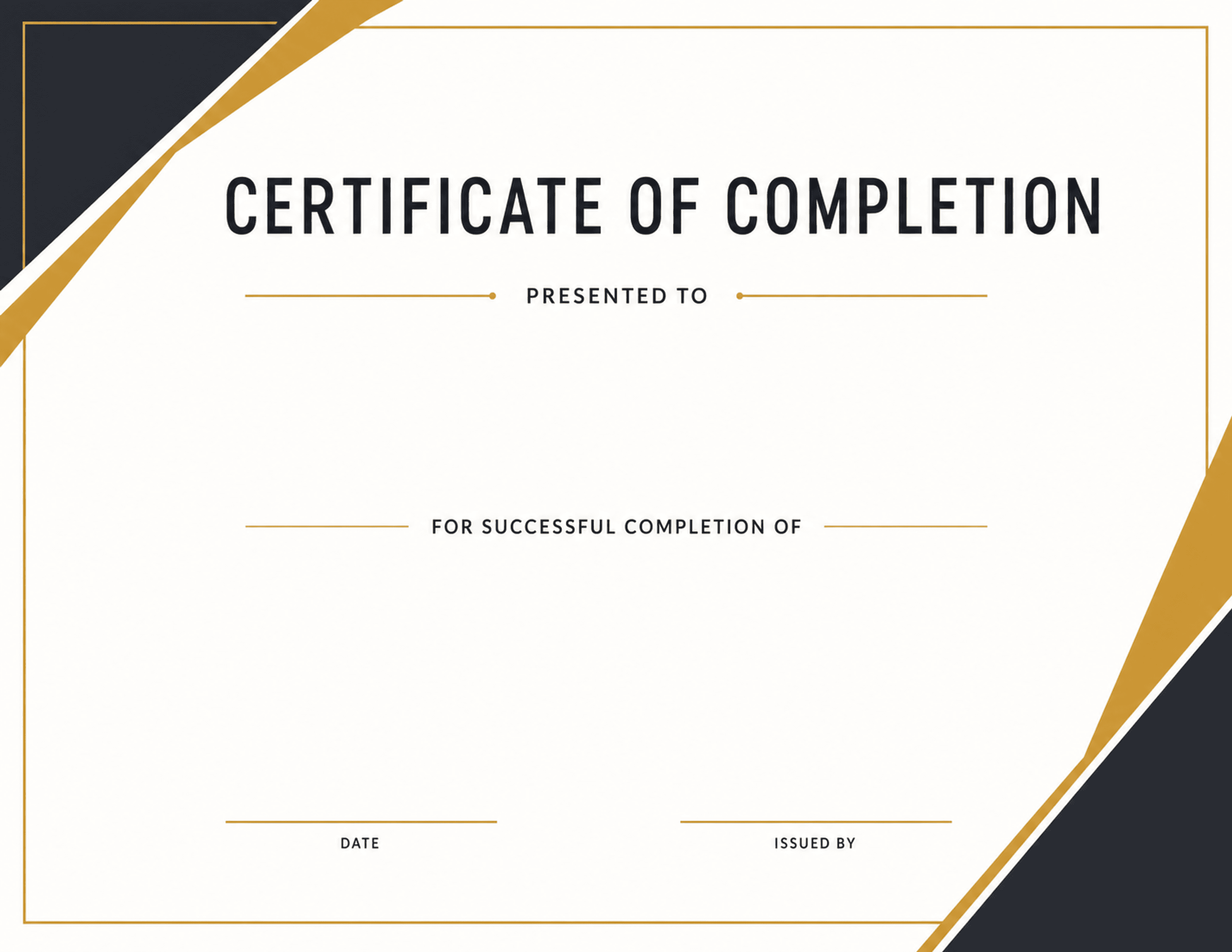
Attendance, sign-ups, and course rosters usually already live in a Google Sheet. Download that tab as a CSV, upload it, and place columns such as name, course, and completion date onto a certificate design. Every row becomes a certificate, without a script, an add-on, or granting access to your Drive.
Teams working in Google Workspace
Google Forms organizers
Community and club leads
What it solves
Example CSV columns
Each column can become a text field on your design. You decide where it appears, how it is styled, and how overflow is handled before export.
Starting point
The upload accepts CSV files. Both Excel and Google Sheets save one in a couple of clicks — the details below are the parts that usually trip people up.
Workflow
The same process works whether you start with a built-in design or upload your own PNG/JPG artwork.
Open the tab holding your roster — the download exports the active tab only.
File → Download → Comma-separated values (.csv).
Upload the CSV, pick a certificate design, and place your columns on it.
Preview real rows for text fit, then export the certificate PDFs.
Export options
Certificate PDFs from a Sheets roster
Certificates from linked Google Forms responses
One combined PDF or separate files
Questions
No, and that is deliberate. There is no account, no Drive permission, and no live connection to break — you download a CSV and upload it, so nothing of yours stays connected to this tool.
Only the tab you are viewing when you choose File → Download → CSV. If your roster is on a second tab, open that tab first.
They download as their results, not the formulas themselves. A column that joins first and last names, or looks up a course title, arrives as finished text ready to place on the certificate.
More use cases
Excel to certificate PDFs
Turn an Excel spreadsheet into personalized certificate PDFs. Save the .xlsx as CSV, place your columns on a certificate design, and export the whole list.
Bulk certificate generator
Generate certificates in bulk from an Excel, Google Sheets, or CSV list. Up to 500 per batch as one combined PDF or separate files. Free, no account needed.
CSV certificate generator
Create personalized certificates from a CSV spreadsheet and a certificate design. Upload rows, place fields, preview names, and export PDFs in bulk.