Can I upload an Excel file directly?
Not yet — the upload accepts .csv only. In Excel, use File → Save As and pick CSV UTF-8 (Comma delimited). The workbook itself is unchanged; you just get a .csv alongside it.
Excel to certificate PDFs
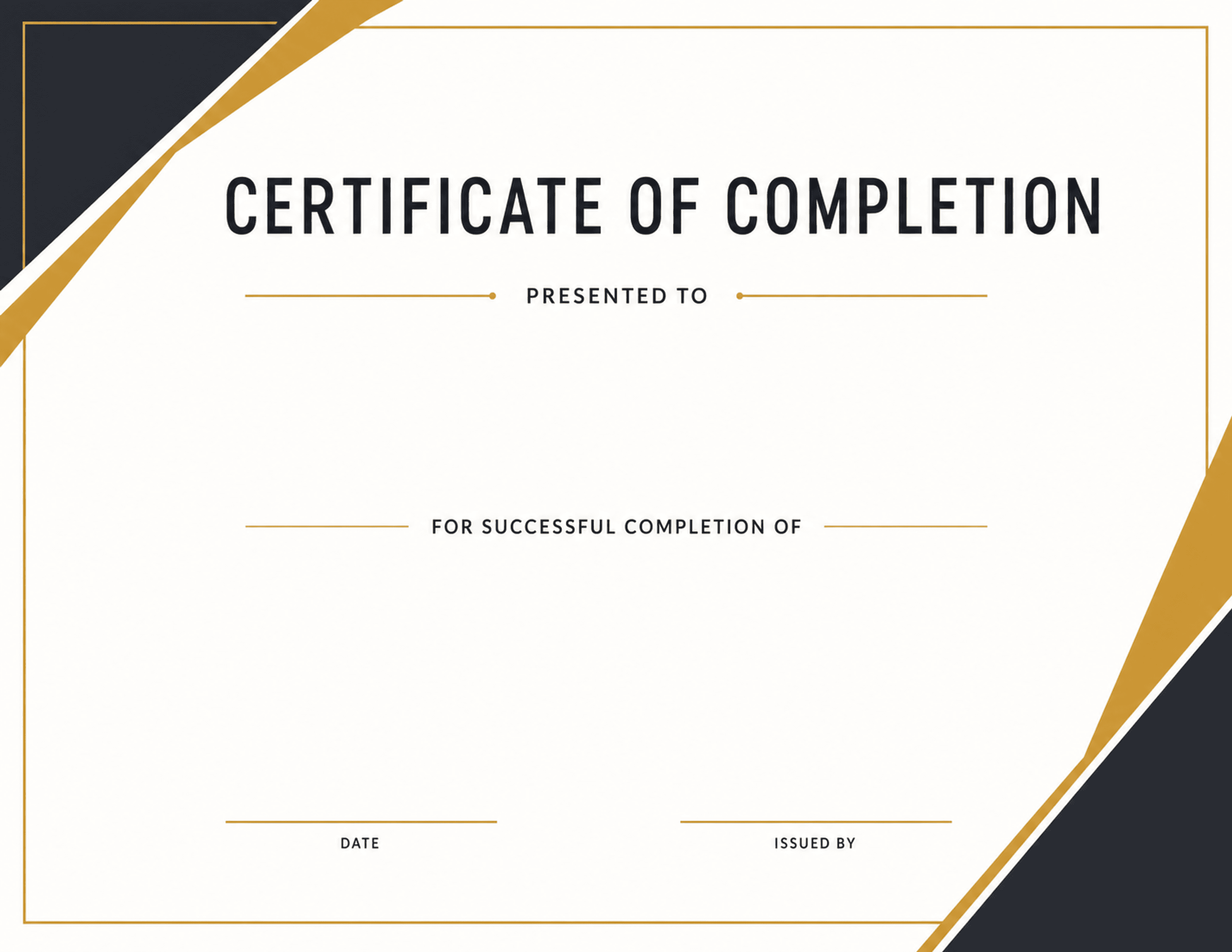
If the names are already in Excel, the certificate work is nearly done. Save the workbook as a CSV, upload it, and place columns such as name, course, and date onto a certificate design — Batch, Please fills in every row and exports finished PDFs. No mail merge, no Word document, no add-ins.
Excel-first admin teams
Trainers keeping rosters in .xlsx
Office coordinators
What it solves
Example CSV columns
Each column can become a text field on your design. You decide where it appears, how it is styled, and how overflow is handled before export.
Starting point
The upload accepts CSV files. Both Excel and Google Sheets save one in a couple of clicks — the details below are the parts that usually trip people up.
Workflow
The same process works whether you start with a built-in design or upload your own PNG/JPG artwork.
Tidy the sheet so row 1 is headers and every row below is one recipient.
Save As → CSV UTF-8 (Comma delimited), which writes the sheet you are on.
Upload that CSV, choose a certificate design, and place your columns.
Preview a few real rows, then export the certificates as PDFs.
Export options
Certificate PDFs straight from an .xlsx list
One combined PDF for printing
Separate PDFs named from a column
Questions
Not yet — the upload accepts .csv only. In Excel, use File → Save As and pick CSV UTF-8 (Comma delimited). The workbook itself is unchanged; you just get a .csv alongside it.
Excel stores dates as serial numbers and CSV keeps whatever is displayed. Format the date column the way you want it to read on the certificate before saving as CSV, or type the dates as plain text.
Yes, as long as you save as CSV UTF-8 and pick a font that covers those characters. Before export, a preflight check flags any character the selected font cannot print instead of quietly rendering an empty box.
More use cases
Google Sheets to certificates
Turn a Google Sheet into personalized certificate PDFs. Download the sheet as CSV, place your columns on a certificate design, and export every row at once.
Bulk certificate generator
Generate certificates in bulk from an Excel, Google Sheets, or CSV list. Up to 500 per batch as one combined PDF or separate files. Free, no account needed.
CSV certificate generator
Create personalized certificates from a CSV spreadsheet and a certificate design. Upload rows, place fields, preview names, and export PDFs in bulk.